Tuesday, June 12, 2012

Connecting to Virtual PC's Internet Connection from Host

If you're like me who has a Windows 7 64bit computer with a broken LAN port and you purchased a usb lan card but does not have the driver's for it, then this article is for you.

I will teach you how you could still make use of your USB LAN adapter from within a virtual environment and access the internet from your virtual machine.

The first thing you will need is to download and install a virtual machine. You can download Microsoft's XP mode for Virtual PC or setup Oracle's Virtual Box and grab a Windows XP image on the net. I prefer installing Windows XP because of the JP1081 USB Lan adapter I have runs great on Windows XP. There are lots of tutorials on how to setup and install these virtual machines so go and Google it up because this article will not cover setting up the virtual machine.

Once your virtual machine is setup and running. Fire it up and plug in your USB Adapter and load it up on the virtual machine with all of its drivers installed of course on the virtual machine. Once the USB LAN adapter is working and properly running on your virtual machine, its time to setup the host computer.

First, setup a loopback adapter on your host computer.
On Windows 7, you go to Device Manager and under action click Add legacy hardware.

After the welcome screen, select Install the hardware that I manually select from list then click next. Pick Network Adapters and then in the Microsoft manufacturer click Microsoft Loopback Adapter.

Click finish and then wait for the new network adapter to show up in your Control Panel > Network and Internet > Network Connections folder.

It will show up as a Local Area Connection with a Microsoft Loopback Adapter Description. Right click the newly created network adapter and click on Properties. Edit the IPV4 settings and just use the settings below.
Pay attention to the default gateway as this will be the IP of your Virtual Machine's Internal network. The DNS server addresses are from Open DNS and you can use any DNS server you want. Click on OK to save your settings.

You have finished setting up your host, now we setup the Virtual PC's network to talk to your host.

First, open the networking setup of your virtual PC. On Virtualbox, you click on Devices and Network Adapter.
On network select Bridge Adapter on the Attached to and select Microsoft Loopback Adapter, the name of the Lan Adapter we just created earlier.
Click OK to save your settings and wait for the virtual machine to update its network adapters. 

Your virtual machine should have these settings on its Network Adapters folder.

You should have internet connection enabled by now on the virtual machine. Try opening the virtual machine's browser and check if you have internet connection.

We now then have to configure the virtual machine's LAN Adapter with these settings.
Take note of the default gateway. This is the IP of your host computer. Your host computer's loopback adapter's default gateway should also be your virtual pc's IP. The host and Virtual PC should not have the same IP's. Click OK to save your settings and you are done!

Verify if you have connection by pinging your virtual pc from the host and also pinging your host from the virtual pc. Also try to ping a website from your host and check if there is a connection.


Friday, August 5, 2011

Smart WiMax vs Canopy Plan 999: Speed Comparison

Smart Bro Wimax vs Canopy


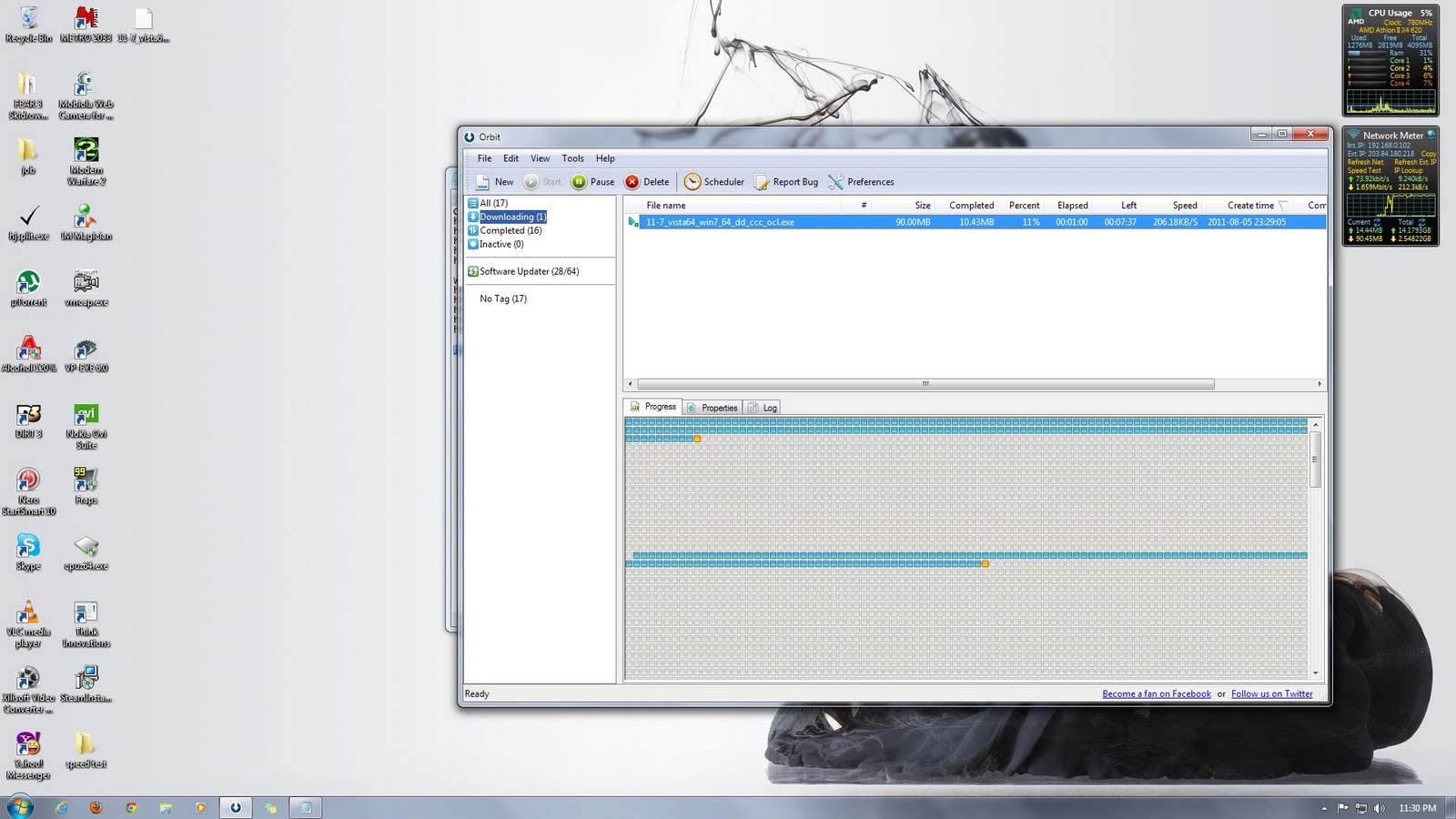
At my disposal are two of SMART's SMART Bro line of broadband products which is the SMART Bro WiMax Plan 999 and SMART Bro Canopy Plan 999. This blog demonstrates the speeds of both internet solutions with image links direct from speedtest.net. For the download speed, I dowloaded a 90 megabyte video card driver file from AMD and screen captured after a minute of download. For the upload, I uploaded a 35 megabyte file to my skydrive and screen captured after a minute of upload as well. These are the results.

SMART Bro WiMax Plan 999:
Speedtest
smart bro wimax speedtest
Actual Download Speed
(click to enlarge)
smart bro wimax download speed
Actual Upload Speed
(click to enlarge)
smart bro wimax upload speed

SMART Bro Canopy Plan 999:
Speedtest
smart bro canopy speedtest
Actual Download Speed
(click to enlarge)
smart bro canopy download speed
 Actual Upload Speed
(click to enlarge)
smart bro canopy upload speed

Conclusion:
SMART Bro Canopy Plan 999 is faster than the the WiMax Plan. Although the speed tests were almost at par with one another, the actual speed test of the upload and download speed for the canopy plan is still twice as fast as the WiMax' upload and download speed.

Tuesday, May 24, 2011

Google Maps v3 Update with Smooth Zoom


Bing Maps


Google Maps
Have you seen Google Maps version 3 implemented websites lately? Then you might have noticed something different. One that you have seen before in Bing Maps which is smooth zoom. (example here). Smooth zoom makes zooming in and out of maps more visually appealing than with their old implementation which is just boxes loading in the side of the map whenever you zoom in and out of the map. It makes it a whole lot easier to determine where you are going to or moving away from the map. As you zoom in and out, the texts, roadways and even the landmarks gracefully fade into view or fade out depending on whether you are zooming in or out of the map. This is more visually appealing than with the old Google maps as shown here where it doesn't fade in and out landmarks and texts into view.


I think Google is amping up its Google maps service after a recent announcement that Bing Maps, powered by Navteq, will start on it's Streetside which will rival Google's Streetview. But whatever it is, Google is serious about making it's Google Maps better than the competition. And with better product support and more developers favoring the Google Maps platform on website which I use myself in some website projects, I'm sure Bing has a lot of catching up to do in terms of product support and developer interest.

Monday, May 23, 2011

Charge via USB On the Go on the Nokia N8 and E7

The new Nokia N8 and E7, with its USB on the Go feature, can charge devices via USB. Just plug any USB charging capable device on the Nokia N8 via the shipped USB on the Go cable attachment for the Nokia N8 and E7. Instead of having to buy a separate battery pack where you can plug in USB devices to charge it from, why not try charging via USB on the Go.

The latest cellphones from Nokia such as the the C-Series phones and Symbian 3 devices can charge via USB using their USB cables. To charge, just set any device into mass storage mode in the enhancements settings and plug it in the USB on the Go cable attached to the Nokia N8 or E7. The downside is that the battery of your Nokia N8 or E7 will also drain so use it whenever you really need to.

Other USB devices can also charge via way of USB such as portable Mp3 Players. You can also sync music on the go while charging via USB because most modern Mp3 players such as your IPOD charges via USB.

So for that needed charge on the go, charge via USB on the Go for the Nokia N8 and E7 models. You can never run out of juice ever again.

Get Paid to View Ads

Why not get paid to view ads by going to Onbux.

Onbux is a site where you get paid viewing ads and sending referrals to other people. 


Tired of having to refer people via blogs and other means, Onbux has a referrals rental where you can rent referrals for a very affordable package. The more referrals, the better. Cash out is also at least $2 so be sure to rack up on referrals so that you get paid.


Clixsense