Wednesday, July 22, 2015

Galaxy S6 Review

This is not a full review of the galaxy s6. If you want a full review, you can head on over to youtube for that.

Instead, I will be talking about my experience with the Samsung's flagship phone, the Galaxy S6. This is just the regular s6 and not the edge.

After having the device for 3 months already and coming from a Galaxy Note 2, all I could say is that it is a great improvement from my previous device.


Visually, the phone looks great. With an all metal bezel and front and rear glass, you get to instantly feel that its a premium device. You would want to touch it without a cover because in my experience, gripping a real metal and glass phone is just amazing. You would not want to cover this phone up with a jelly case but you should for protection.


The display is amazing. The colors are vibrant and text is crisp. Thanks to the Super AMOLED Display with an awsome quad HD resolution of 2560x1440 pixels, you hardly get to see the pixels up close. Although I didn't complain about my previous device's 720p resolution, the new display was a great step in technology.

Now lets head on over to the other features that I like about this device. For security, it has a fingerprint sensor. For health, it has a heart beat monitor in the back with a step counter or a pedometer to count your steps as you go for a walk or run. And for your home, it has an IR blaster up top that you could use to control your TV and TV box.

Fast charging is also included so you don't have to wait hours before you get a 100% charge. Wireless charging is also already embedded so you get to use those fancy wireless charging stands that I have right here.


Now last but not the least, the camera. It boasts a 16 megapixel f1.9 camera. With the camera, you can capture some amazing shots indoors and outdoors with great clarity and great colors. I tend to use the auto mode a lot but if you want fine controls, there is also a pro mode. The photos below speaks for itself. They are not edited or have been added filters. They are as is and are straight from the camera.


The Samsung Galaxy S6 does meet the expectation of mine but I wouldn't mind an external SD card next time. For when you want to expand your storage.

Tuesday, July 21, 2015

Web Designer from Manolo Fortich

Are you thinking about starting your own website for your business?
Have no fear for Francis is here. Your local online freelancer that can help you setup your first website.
If you want to contact me, just send an email at francisuan@gmail.com or drop by Hingcayog Store in front of Rural Bank of Manolo Fortich, Baranggay Tankulan, Manolo Fortich, Bukidnon.
Don't be afraid to put your business online because times have changed and you too adapt to the changing times. No need to go to Cagayan de Oro for your website needs because I am here.
I have an extensive portfolio of sites already published and running online that I am willing to show you if you wish to see my work.
This is me, if you are from Manolo Fortich then you might have seen this face.

Wednesday, November 28, 2012

My Name In Adobe Illustrator

There is nothing more cooler than creating a designer text logo of your own name using Adobe Illustrator. Its so much easier and not to mention, nice to look at.

My Personal Facebook customized cover photo
The one above is a cover photo for my Facebook profile. Not only does it look good but its totally different. I must be feeling all fired up when I created this one.

Tuesday, June 12, 2012

Connecting to Virtual PC's Internet Connection from Host

If you're like me who has a Windows 7 64bit computer with a broken LAN port and you purchased a usb lan card but does not have the driver's for it, then this article is for you.

I will teach you how you could still make use of your USB LAN adapter from within a virtual environment and access the internet from your virtual machine.

The first thing you will need is to download and install a virtual machine. You can download Microsoft's XP mode for Virtual PC or setup Oracle's Virtual Box and grab a Windows XP image on the net. I prefer installing Windows XP because of the JP1081 USB Lan adapter I have runs great on Windows XP. There are lots of tutorials on how to setup and install these virtual machines so go and Google it up because this article will not cover setting up the virtual machine.

Once your virtual machine is setup and running. Fire it up and plug in your USB Adapter and load it up on the virtual machine with all of its drivers installed of course on the virtual machine. Once the USB LAN adapter is working and properly running on your virtual machine, its time to setup the host computer.

First, setup a loopback adapter on your host computer.
On Windows 7, you go to Device Manager and under action click Add legacy hardware.

After the welcome screen, select Install the hardware that I manually select from list then click next. Pick Network Adapters and then in the Microsoft manufacturer click Microsoft Loopback Adapter.

Click finish and then wait for the new network adapter to show up in your Control Panel > Network and Internet > Network Connections folder.

It will show up as a Local Area Connection with a Microsoft Loopback Adapter Description. Right click the newly created network adapter and click on Properties. Edit the IPV4 settings and just use the settings below.
Pay attention to the default gateway as this will be the IP of your Virtual Machine's Internal network. The DNS server addresses are from Open DNS and you can use any DNS server you want. Click on OK to save your settings.

You have finished setting up your host, now we setup the Virtual PC's network to talk to your host.

First, open the networking setup of your virtual PC. On Virtualbox, you click on Devices and Network Adapter.
On network select Bridge Adapter on the Attached to and select Microsoft Loopback Adapter, the name of the Lan Adapter we just created earlier.
Click OK to save your settings and wait for the virtual machine to update its network adapters. 

Your virtual machine should have these settings on its Network Adapters folder.

You should have internet connection enabled by now on the virtual machine. Try opening the virtual machine's browser and check if you have internet connection.

We now then have to configure the virtual machine's LAN Adapter with these settings.
Take note of the default gateway. This is the IP of your host computer. Your host computer's loopback adapter's default gateway should also be your virtual pc's IP. The host and Virtual PC should not have the same IP's. Click OK to save your settings and you are done!

Verify if you have connection by pinging your virtual pc from the host and also pinging your host from the virtual pc. Also try to ping a website from your host and check if there is a connection.


Friday, August 5, 2011

Smart WiMax vs Canopy Plan 999: Speed Comparison

Smart Bro Wimax vs Canopy


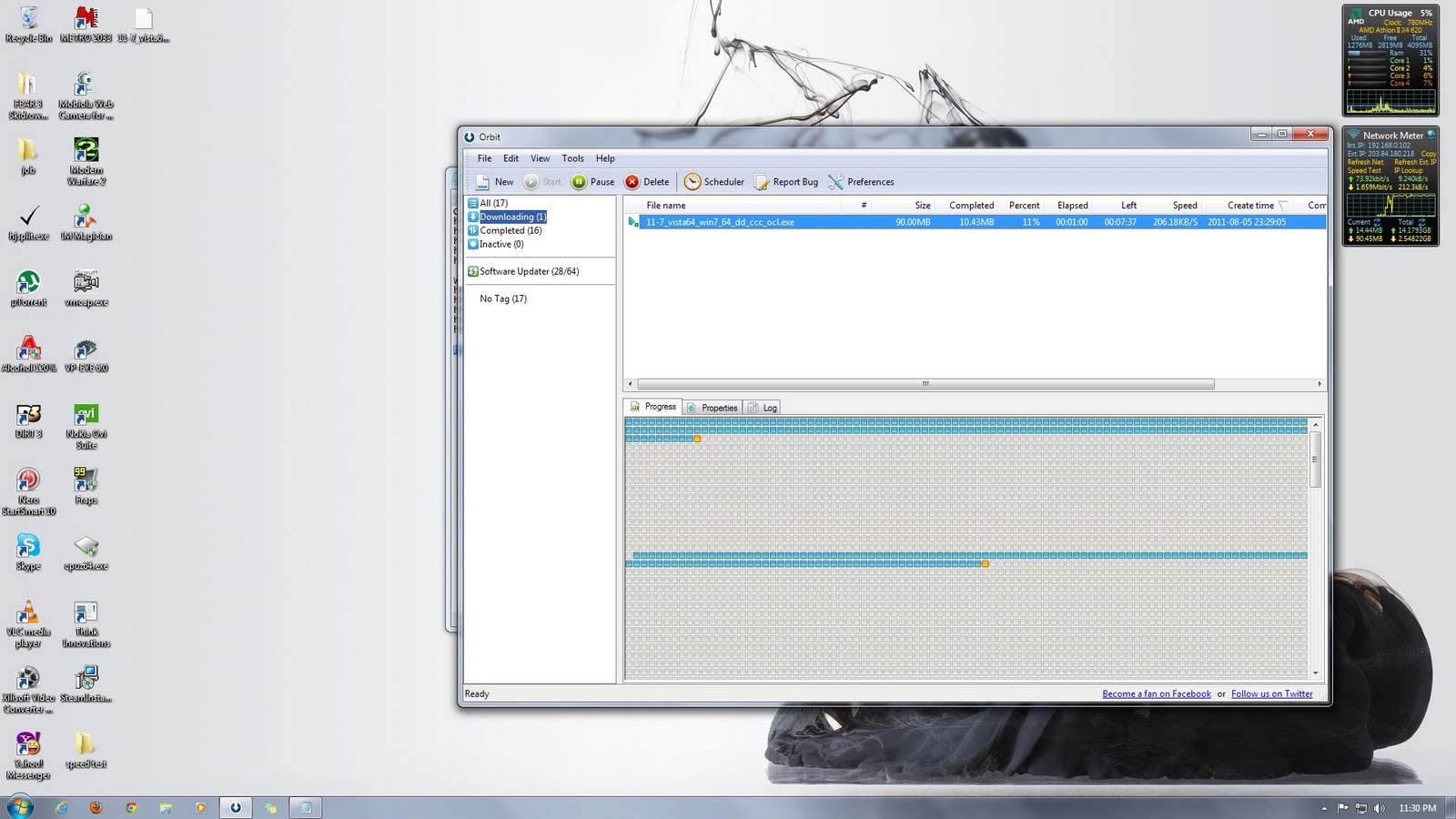
At my disposal are two of SMART's SMART Bro line of broadband products which is the SMART Bro WiMax Plan 999 and SMART Bro Canopy Plan 999. This blog demonstrates the speeds of both internet solutions with image links direct from speedtest.net. For the download speed, I dowloaded a 90 megabyte video card driver file from AMD and screen captured after a minute of download. For the upload, I uploaded a 35 megabyte file to my skydrive and screen captured after a minute of upload as well. These are the results.

SMART Bro WiMax Plan 999:
Speedtest
smart bro wimax speedtest
Actual Download Speed
(click to enlarge)
smart bro wimax download speed
Actual Upload Speed
(click to enlarge)
smart bro wimax upload speed

SMART Bro Canopy Plan 999:
Speedtest
smart bro canopy speedtest
Actual Download Speed
(click to enlarge)
smart bro canopy download speed
 Actual Upload Speed
(click to enlarge)
smart bro canopy upload speed

Conclusion:
SMART Bro Canopy Plan 999 is faster than the the WiMax Plan. Although the speed tests were almost at par with one another, the actual speed test of the upload and download speed for the canopy plan is still twice as fast as the WiMax' upload and download speed.

Clixsense