Showing posts with label Nseries. Show all posts

Saturday, August 15, 2009

Extend your Nokia Nseries' Battery Life

If you want to extend the battery life of your Nokia Nseries Phone, then these tips will help you.

1. Disable auto WLAN searching by going to Settings>Connection>Wireless LAN and set the "Show WLAn availability" to NEVER.


2. Set your network mode to GSM by going to Setting>Phone>Network and set network mode to GSM.


3. Lower your light sensor power saver time-out and light time-out by going to Settings>General>Personalization>Display ang lower the slider of the light sensor and the time-out for power-saver and backlight.


4. Disable vibrating alert and ringtone by going to Settings>General>Personalization>Tones and set Ringing tone, Message alert tone, and vibrate alert to "Off"


5. When you don't have any important calls waiting or any important messages to receive, you could always set your mobile phone to offline mode by pressing the power button and selecting offline mode.
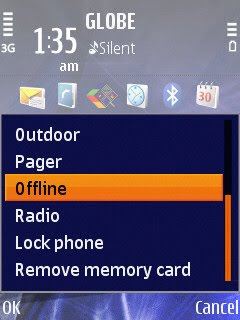


6. Turn-Off your bluetooth or Infrared when not in use.

Friday, August 7, 2009

Upload and Share Photos for Free with Nokia OVI on Globe Prepaid


If you happen to be a resident of the Philippines and you are a Globe Prepaid Subscriber, then you would want to try out sharing your photos from your mobile with Nokia OVI.

Nokia OVI comes with every Nokia Nseries camera phones sold in the Philippines. Its a sharing application that lets you upload and share your mobile photos with ease directly to the web.

To use the service, you need to create an account at OVI. When you have created an account, activate OVI on your Nokia device and then you'r ready to upload.

When you want to upload an image, go to your gallery and choose a picture to upload. Click on the post to OVI by Nokia, usually with the globe icon with an arrow pointing up. The upload will then begin and will prompt you when the upload is done. You can only upload one photo at a time on the gallery. If you want to post multiple photos at a time, go to the sharing application and post multiple photos at a time.

Sharing Photos is easier this way because contacts can view photos online. You don't have to worry about spending too much prepaid load because, in my experience, its a free service when you only have one peso load. Family and friends from around the world could view your photos instantly on the web when using embedable links availabe at nokia OVI. Post shared photos into your social sites with ease and let loved ones see your smiles in an instant with Nokia OVI.

Monday, August 3, 2009

A treat for Globe Prepaid subscribers with Nokia handsets


I have been a Globe Prepaid subscriber ever since I owned my very first cell phone way back when I was still in high school. I’ve been enjoying services that most people don’t even use which are incorporated into their mobiles so I think it is about time I share some of the cool things about being a Globe Prepaid subscriber. These are:


1. Free High-Speed Internet for the first 48 hours (2 days) of buying a new mobile phone.
After buying a new mobile phone, preferably an HSDPA enabled mobile phone, you could enjoy using Globe’s High Speed Internet free for the next 48 hours of activation of your SIM. You can stream videos, listen to podcasts and even connect your mobile to your PC or laptop and enjoy high speed internet surfing.


2. Yahoo Mail and Yahoo Web Search and Yahoo Image Search.
Why not access Yahoo Mail straight from your mobile. With Nokia’s Settings Wizard, enable your phone to connect to your Yahoo Mail and read emails on the Go. It’s fast and easy and very convenient for you on-the-go kind of persons. Yahoo Services such as web search and image search are free but when you access the external links you will then be charged accordingly. Wikipedia is also free for those of you who want easy information.


3. flickr
Flickr is a cool image sharing site. Capture pictures with your mobile phone and upload them directly to your flickr account if your even have one. Share moments easily on flickr provided you sign-up and enable the service on your mobile.


4. OVI
OVI is another cool sharing service exclusively for Nokia users. OVI is much more versatile compared to flickr which allows for image, audio and video uploads for sharing instantly with contacts and on the web. Upload videos to OVI and share them with contacts. You could even see your contact’s uploads right on your mobile for free.


5. Pre-paid Internet
When on the go and you would really want to access the internet, you can do so with Globe. Globe Prepaid handsets with internet access will allow you for kilobyte charging or per-minute charging as well. I’d prefer the per-minute charging which costs five pesos/15 minute browsing. For faster speeds, an HSDPA handset is recommended. You could even connect your mobile to a compatible computer and browse the net through Globe’s Internet Service.


So for those of you reading this page, I hope you would enjoy these services as well. Features in your mobile phones will never be useless ever again.

Friday, July 10, 2009

High Speed Internet Using your Nokia Nseries

Just recently, Pre-paid internet became popular. These small, USB devices plug directly into your laptop and viola, high-speed internet access. Its very easy to use because you just plug it in and your ready to surf the net.

These devices makes use of the newest Third-Generation network interface for mobile devices or 3G to achieve impressive speeds that are sometimes faster than broadband internet. Some carriers claim up to 3Mbps speeds which is way faster than your average 384Kbps broadband at home. Philippine carriers such as Smart have their Smart Prepaid kits that cost Php 1,995 pesos and Globe Telecommunications have their Globe Tattoo Prepaid that shows of stylish USB internet devices. They may be different on the outside and works on different carriers but they all have one function and that is to connect to the internet wirelessly. But buying these devices can cost you Php1,995 pesos.

What if you have a 3G phone that happens to by lying around the house, or you do have one in your pocket. Nokia Nseries cell phones are examples of these, preferably models that have a highspeed data packet access feature such as the N82 and N95 and newer models.

With these devices, you too can experience the fast internet access right on the device or feed that speed into your laptop using the included USB data cable for you cell phone. You do need to have pre-paid load before you can attempt to even use the service otherwise the web pages would not load at all.

The network interface that powers those fancy USB internet devices that plug right into your laptops and PC's are the same as the Newtork Interface that is on your cell phones. You don't need to purchase the plug-its but instead, you could use the money to pay for the pre-paid load. You might get carried away and use the service more and more because you might notice a faster connection especially with the N95, n82 and other high speed data packet access capable models when within 3G covered areas.

Setting up is relatively easy. You just;
1. Set-up your mobile for internet access. You can do these using the settings wizard on your Nseries or by calling you customer service and asking for your phone's settings.
2. Install software. Nokia comes with an installer CD that has the Nokia PC Suite.
3. Get-connected. Plug your mobile to your PC or laptop via the included USB data cable from your Nseries phone and use the PC suite option that appears every time you connect your cellphone to your computer.
3. Load up. Be sure you have prepaid load for your service. )15 minutes of internet airtime costs 5 pesos for Globe users.)
4. Connect to the network. Using the Connect to the Internet option on the Nokia PC Suite software, connect to your network. Follow the instructions and select your country and your mobile carrier.
5. Start browsing. When a connection has been established, you are ready for browsing using Internet Explorer or Firefox. When your pre-paid load is all out, pages will not load so you will need to load to continue browsing.

It is that easy. No need to buy fancy plug-its to be able to use the fast internet access offered by our mobile carriers. But if you have the money then go ahead. These fancy plug-its are cool and are good for hanging around your neck as necklaces. (Globe Tattoo Prepaid in particular)

Thursday, July 9, 2009

Nokia Nseries Cellphones Hard and Soft Reset Techniques


Got problems with your Nokia Nseries Mobile Phone? I have got one solution to your problem, which is the Nokia Nseries Reset.


Problems from Nokia's mobile phone might be in the form of low memory, failed boot, virus infection or software errors.


To fix problems like these, a reset can be done by you without the expensive trips to cell phone doctors who charge you for repairing your phone for you. It is not a good idea to go to them for assistance right away for cell phone troubles like the ones I have just enumerated. When a reset is not successful, then that is the time to go to them for repairs.


The first reset technique is the Soft Reset which is a reset that can be done when you go to tools > general > factory settings option in your Nseries Menu. The sort-cut to this is by dialling *#7370#. This reset does work on other Nokia models so it is also a worth to try whenever you are having troubles with you Nokia cell phone. This reset will delete all of your contacts, notes, messages and everything stored in your phone memory so be sure to back up everything before you reset your phone. It does not, however, delete viruses running in the cell phone's memory card, if ever you have one. This reset is only possible when you can boot up your cell phone correctly. But when boot up is not possible you can try the next technique.


The next and the final and most effective reset technique for your Nseries Mobile device is the Hard Reset. A hard reset is effective at removing everything in the phone's memory. It is the most effective reset you could ever do whenever a virus infects your phone and prevents it from booting up. To do a hard reset there are two easy steps; 1) turn of your cell phone, 2) power on your cell phone while holding the asterisk (*) key, 3 and the answer key (green button) together (as shown below) until you see the Nokia Logo. You are done! You have a mobile that is as fast as the day you bought it.

Clixsense